Free workflow · Interactive demo
Turn a chest image into an interactive reward
Try the five-tap demo, then explore the image prompts, animation, sound and offline PWA workflow.

Five taps. One small reveal.
Demo points only. No real rewards. Loading the demo connects to the app hosted on Vercel. Sound starts only when you interact with it.
The app is a full page and may scroll inside this preview. On a phone, opening the full app gives you more room. To install it, open the full app in a supported browser and follow its installation controls. This embed does not install an app under axionai.dev.
Two images. A working interaction.
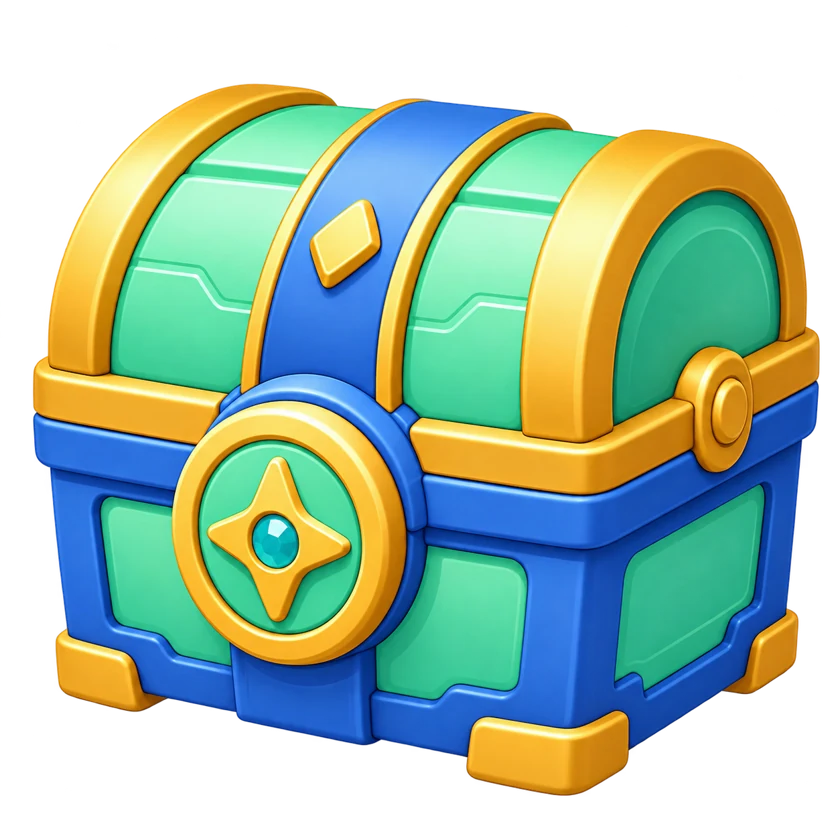
The starting point was a supplied illustration. Its original creation prompt is unknown. An image-editing tool produced a transparent closed chest; that generated closed image then became the reference for the open state.




React tracks five taps, then CSS and the Web Animations API add bounce, particles and a crossfade into the open image. This is a transition between still images, not a 3D model or a Rive rig.
- Prepare two aligned transparent PNG assets.
- Build the tap, opening and reward states in React.
- Synthesize sound in the browser with Web Audio.
- Add a service worker for offline PWA support.
- Deploy from GitHub to Vercel.
Prompts for ChatGPT — GPT-6 Astra
These are newly written recreation prompts, not a transcript of the original build or an end-to-end verified rerun. Image results will vary. The two historical image-tool prompts are reproduced separately and exactly below.
Use an environment with image generation for the artwork and workspace tools for editing, testing and deployment. A text-only response does not mean those actions have been performed.
1. Prepare a transparent closed chest
Attach the original reference PNG from the image comparison above. Its creation prompt is unknown. Check alpha transparency, framing and silhouette before continuing.
Use the attached chest illustration as the reference for an interactive reward demo. Use the available image-editing tool to create a square transparent PNG of the closed chest. Preserve its mint-green panels, blue frame, gold trim, round front lock, three-quarter camera view and full-object framing. Remove the white background and floor shadow. Keep transparent margins around the entire object. Do not add lettering, a watermark, particles or other objects. The background must have real alpha transparency, not a painted checkerboard. Return the image as chest-closed.png if file naming is supported.Exact image-tool prompt used in this build
Use case: background-extraction
Asset type: transparent PNG for an interactive tap-to-open treasure chest React component.
Input image 1 is the edit target.
Primary request: remove ONLY the white background and floor shadow; retain exactly this closed stylized 3D treasure chest, its perspective, geometry, mint green panels, blue structure, gold trims and round front lock. No redesign.
Composition: square canvas, centered full chest, preserve the original framing with transparent margins and the exact chest silhouette. Keep all sharp detail, highlights and original material colors.
Background: genuinely transparent alpha, no white background, no checkerboard painted into the image, no opaque floor, no drop shadow outside the object.
Constraints: one chest only, closed lid, no added objects, no lettering, no text, no watermark.
2. Generate the matching open chest
Attach the generated closed PNG from step 1, not the original illustration. Compare both states for matching position and scale.
Create a second transparent PNG state for the attached chest. Show the same chest with its lid hinged open backward, a warm glow inside and a modest pile of gold coins. Preserve the lower body's position and scale, camera angle, materials, colors, feet and front medallion. Keep the full object inside the same square canvas with margins, including the raised lid. Use real alpha transparency with no floor, external shadow, painted checkerboard, floating particles, text or watermark. This image will crossfade with the closed state, so alignment matters. Return it as chest-open.png if file naming is supported.Exact image-tool prompt used in this build
Use case: precise-object-edit
Asset type: second animation state, transparent PNG of an OPEN treasure chest, matching the closed input image for a web game.
Input image 1 is the edit target: closed mint-green, royal-blue and gold stylized 3D treasure chest.
Primary request: render this SAME chest with its lid hinged open backwards at about 75 degrees, showing a warm golden interior glow and a modest pile of gold coins inside. The round gold front medallion remains on the front lower body.
Keep identical design language, colors, materials, lighting, front/right three-quarter camera view, all lower body details and feet. Keep the lower body approximately at the same scale and location in the square canvas; the open lid rises into the upper portion. Full object with margin, no cropping.
Background: true transparent alpha, no white, no checkerboard, no floor, no external drop shadow. Warm light must be contained inside the chest, no huge opaque glow outside. No floating particles or floating coins, we add those in code.
Constraints: single chest only, no text, no watermark, no extra objects. Faithful same character identity and perspective.
3. Build the interactive component
Provide both PNGs and access to a Next.js project, or request complete files you can copy into one.
Build an English-only interactive reward demo in Next.js with React and TypeScript using my two transparent chest images. Inspect the existing project before editing and follow its conventions. Use a client component with five taps by default. Add a progress indicator, tap bounce, particles and a short opening transition that crossfades from the closed image to the open image. Do not require Rive or a 3D model.

Model idle, opening, revealed, claiming and claimed states explicitly. Require an asynchronous onClaim callback, prevent duplicate claims and handle failure with a retry action. Start the demo balance at 1,250 points and simulate a 250-point reward. Clearly label these as demo points with no real rewards. Provide a replay control and a way to test claim failure. Do not imply a backend exists.

Use a cream background, dark-green typography and a responsive layout that makes the chest the focal point. Support keyboard activation, accessible progress and status text, visible focus and reduced motion. Keep all copy and labels in English. Explain which files changed and how to run the app. If you cannot edit or run files in this environment, provide the complete files and commands and clearly mark checks as not run.
4. Add sound
Use the project from the previous step. Real-phone listening tests are still necessary.
Add procedural sound to the chest demo using Web Audio, without downloaded audio samples. Make successive taps rise in pitch, play an opening arpeggio and give successful collection and errors distinct short cues. Add an accessible mute toggle that remembers the user's preference. Initialize or resume audio only following a user gesture; do not autoplay. Stop active and scheduled cues when muted, when the page becomes hidden and when the component unmounts. Ensure stale asynchronous work cannot play a sound after mute or disposal. If audio is unavailable, the demo should still work. Verify the lifecycle behavior and explain what still needs listening tests on a real phone.5. Make it installable and usable offline
Test a production build after the first successful online load. Offline demo points do not represent a real loyalty balance.
Turn this Next.js demo into a PWA. Add an English web manifest, appropriate regular and maskable icons, theme colors and installation guidance suited to browser support. Register a production service worker and precache a complete versioned demo build, including both chest images and required scripts, styles and fonts. Make installation atomic: a failed cache fill must not replace a working version. Keep the cached page and its assets from the same build. Exclude real APIs, non-GET requests and unrelated origins from caching. Activate an update only when the user chooses to update, avoiding interruption during chest interaction.

Explain that offline play uses simulated rewards; a real loyalty balance needs server-side validation. Verify a production build, then load it online, disable the network and reload before trying five taps and reward collection. Report checks actually performed and remaining device tests. Do not claim Android or iOS verification without evidence. Provide clear installation steps and a concise explanation of the caching and update design.
6. Deploy and document
Use an environment with authorized repository and hosting access. Reading this tutorial does not require a repository. Keep credentials out of prompts and documentation.
Prepare this demo for deployment through a private Git repository connected to Vercel. Inspect the existing repository and deployment setup first. Run the relevant checks and production build, document the required build settings and deploy when the environment has the necessary authorization and access. Keep credentials out of source files, logs and documentation. If deployment access is unavailable, give the exact remaining steps instead of claiming success.

Document the two image states, animation flow, sound design, PWA caching, deployment and test results. Distinguish actual verification from suggestions. Preserve the original asset prompts and label newly reconstructed prompts honestly. Keep the repository private. The public AxionAI tutorial should contain its own explanation and prompts, with an embedded live demo and an optional full-app link; do not direct tutorial readers to GitHub.
Offline, after the first online load
The service worker caches a complete version of the demo after its initial successful online load. Wait for “Ready to play offline” before disconnecting. Offline play still uses simulated rewards; the balance resets when the demo reloads.
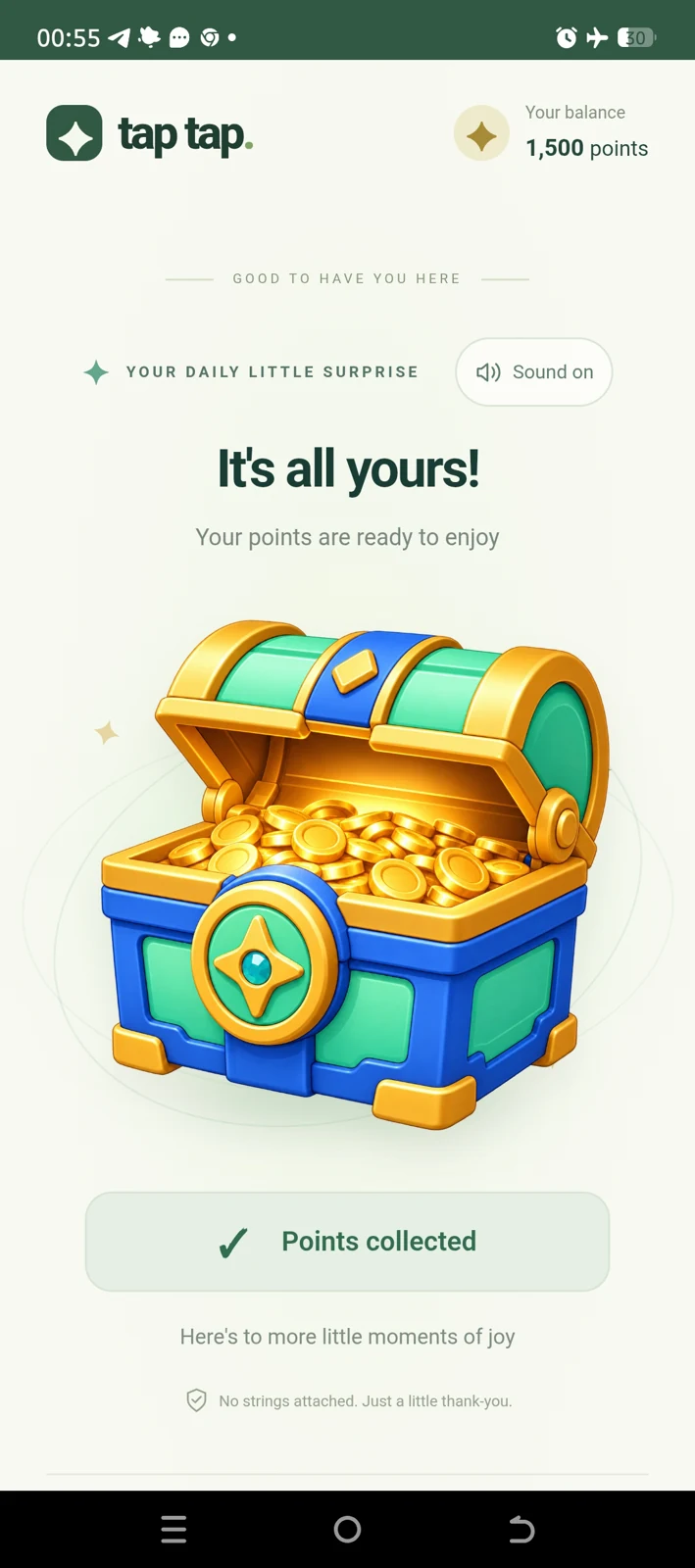
This is a still screenshot, not video footage. The installation sequence was not recorded. The project owner also tested installation and offline use on iOS. Installation availability depends on your browser.
What is behind the chest?
- Next.js + React
- Explicit idle, opening, revealed, claiming and claimed states. Five taps reveal a simulated 250-point reward; collection changes the demo balance from 1,250 to 1,500.
- Two PNGs + motion
- CSS and Web Animations animate the still images. Reduced motion removes decorative movement and uses immediate transitions.
- Procedural Web Audio
- Oscillators create taps, an opening arpeggio, and success/error cues. There are no downloaded sound samples. Muting or hiding the page stops pending cues.
- A versioned service worker
- The cached page and its scripts, styles and images belong to one complete build. An update waits for the user to choose it.
Can this award real loyalty points?
Not by itself. A real loyalty application needs an authenticated backend to validate eligibility, record the balance and prevent duplicate rewards. Tapping is an interaction, not proof that someone earned a reward.
Do I need Rive?
No. This example uses two PNGs and browser animation. A rigged character or more complex interactive animation would be a different implementation.
Does the embedded app work like an installed PWA?
No. Open the full app in its own browser page for installation and offline-use controls. This tutorial does not read taps or reward state from the cross-origin embed.
Want this experience in your product?
Bring your idea, audience and the action you want people to take. We can help connect an interaction to the rest of your product.
Tell us what you’re building